A slow WordPress site loses readers before they ever see your content. The good news is that most slowness comes from a handful of fixable things, and you usually don't need to be a developer to sort them out. Here are the fixes that actually move the needle, roughly in order of how much they help.
Start with caching, because it does the most
Every time someone visits a normal WordPress page, PHP runs, the database gets queried, and the whole page is built fresh. That work happens again for the next visitor, and the next. Caching saves the finished page so the server can hand it straight back without rebuilding it each time. This is almost always the single biggest speed win you can get, and it's the first thing we check when someone tells us their site feels sluggish.
You have a few solid choices for a caching plugin:
- WP Super Cache is simple and free. Good if you just want it on and working without much fuss.
- W3 Total Cache has more knobs to turn. Powerful, but easy to over configure if you're not careful.
- LiteSpeed Cache is excellent if your host runs LiteSpeed, since it caches at the server level rather than just in PHP.
Honestly, pick one and only one. Running two caching plugins at the same time causes weird, hard to debug problems where one cache fights the other. Install it, turn on page caching, clear the cache, and load your site in a private browser window to confirm pages come back fast. That's most of the battle right there.
Fix your images, they're usually the heaviest thing on the page
Images are the most common reason a page feels heavy. People upload a 4000 pixel wide photo straight off their phone, drop it into a post that's only 800 pixels wide, and the browser still downloads the full giant file. Multiply that by ten images and you've got a page that crawls on mobile.
Two things to do here. First, size images sensibly before or after upload so you're not serving a 3 MB photo where a 200 KB one would look identical. Second, compress them. A plugin like ShortPixel, Smush, or EWWW Image Optimizer will shrink existing images and handle new uploads automatically. Many of them also convert to WebP, which is a more modern format that's smaller for the same quality.
One more small thing that helps: lazy loading. That means images further down the page only load when the visitor scrolls near them. Modern WordPress does this on its own now, so you rarely need a separate plugin for it, but it's worth confirming it's on.
The host and PHP version matter more than people think
You can optimize every plugin and image and still feel held back if the underlying server is slow. Two things make a real difference here.
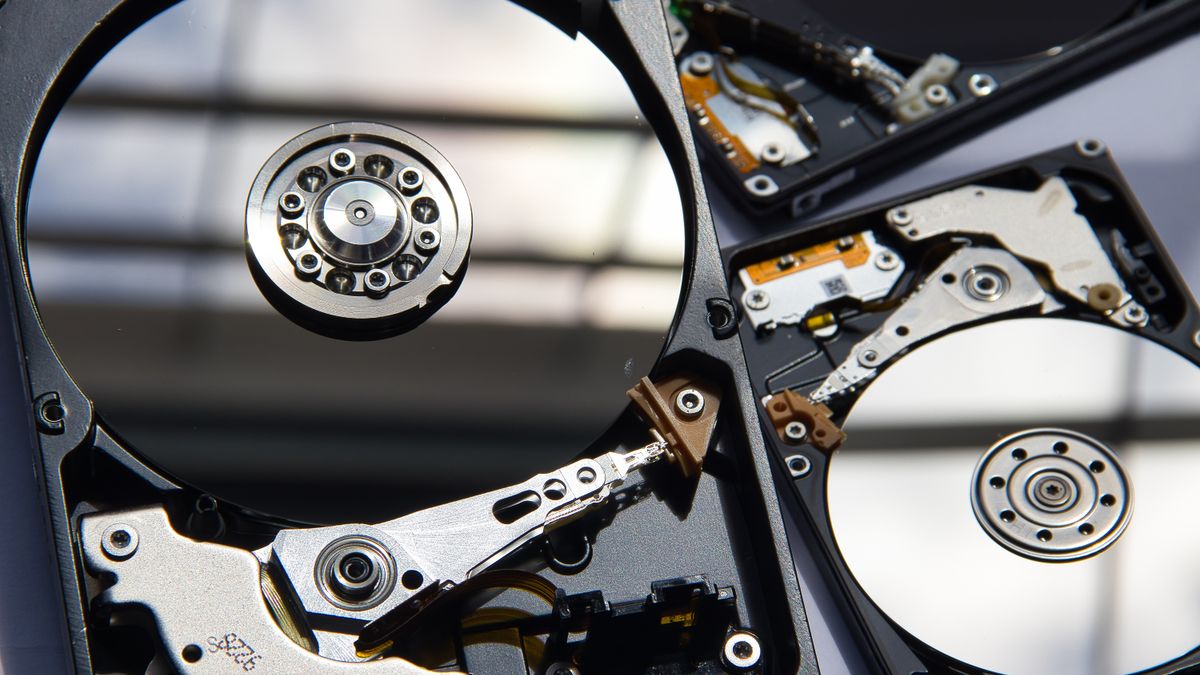
The first is storage. Older hosting often runs on regular hard drives or basic SSDs, and WordPress hammers the disk constantly with database reads and small file lookups. NVMe storage is much quicker for exactly this kind of work, so page builds and database queries finish sooner. Our WordPress plans run on NVMe for that reason. It's not marketing fluff, it genuinely shows up in load times.
The second is your PHP version. WordPress runs on PHP, and newer PHP versions are noticeably faster than old ones. If your site is still on PHP 7.4 or something older, moving up to a current version like PHP 8.2 or 8.3 can speed things up with zero code changes. Most hosts let you switch the PHP version from the control panel in a couple of clicks. Back up first, then test your site afterward, since a very old plugin might not like the newer PHP. In practice it usually just works.
Cut the plugins you don't actually use
Every active plugin can add code that runs on each page load, extra database queries, and sometimes its own CSS and JavaScript files. A site with 40 plugins is carrying a lot of weight, and a fair chunk of it is probably doing nothing useful anymore.
Go through your plugin list and be honest. That plugin you installed once to test something? Gone. The social sharing plugin nobody clicks? Probably gone too. Deactivate, check the site still works, then delete the ones you don't need. Fewer plugins also means fewer things to update and fewer security holes, so it pays off twice.
A quick warning about themes while we're here. Some of those huge multipurpose themes that come with a giant page builder and a hundred demo layouts are slow by design. They load a ton of code so they can do anything for anyone. If your site is simple, a lighter theme will feel snappier. You don't have to switch today, but keep it in mind if your theme is the bottleneck.
Clean up the database and add an object cache
WordPress databases get cluttered over time. Old post revisions, spam comments left in the trash, expired transients, and leftover tables from plugins you removed years ago all pile up. None of it is huge on its own, but a bloated database makes queries slower.
A plugin like WP-Optimize can clean most of this out safely. Take a backup first, then let it clear out old revisions and junk. You can also tell WordPress to keep fewer revisions per post by adding a line to your wp-config.php file:
define('WP_POST_REVISIONS', 5);That keeps the last 5 revisions of each post instead of an endless history.
If your site is busy or runs WooCommerce, a persistent object cache with Redis is a great next step. Page caching saves whole pages, but an object cache saves the results of individual database queries so logged in users and dynamic pages benefit too. Once Redis is available on your server, the Redis Object Cache plugin connects WordPress to it. This is the kind of upgrade you notice most on sites that can't fully cache every page, like shops and membership sites.
Put a CDN in front of your static files
A CDN, or content delivery network, stores copies of your images, CSS, and JavaScript on servers around the world. When someone visits, those files come from a location near them instead of traveling all the way from your main server. For visitors far from where your site is hosted, this can shave off a real amount of load time.
Cloudflare has a free tier that's a common starting point, and a lot of caching plugins integrate with it directly. A CDN won't fix a slow database or bloated plugins, so do the earlier steps first. But once the basics are sorted, it's a nice layer on top, especially if your audience is spread out geographically.
Measure, don't guess
Here's the part people skip. Before you start changing things, run a test so you have a baseline. Then change one thing at a time and test again. Otherwise you've got no idea what actually helped.
Two free tools cover this well:
- PageSpeed Insights from Google gives you scores for mobile and desktop plus specific suggestions, and it uses the same Core Web Vitals that affect search ranking.
- GTmetrix shows a waterfall of every file your page loads and how long each one took. That waterfall is gold for spotting the one giant image or slow script dragging everything down.
Test from a location near your actual visitors if the tool lets you pick. A score that looks bad from across the world might be perfectly fine for the people who really read your site. And don't chase a perfect 100. Going from a 40 to an 85 is where users feel the difference. Squeezing the last few points often isn't worth the effort.
A sensible order to work through this
If you only do a few things, do them in this order, since this is roughly how much each one tends to help:
- Install one caching plugin and turn on page caching.
- Compress and properly size your images.
- Get on NVMe storage and a current PHP version.
- Remove plugins you don't use and reconsider a heavy theme.
- Clean the database, and add Redis if your site is dynamic.
- Add a CDN for static files.
Take a backup before each big change, do one thing at a time, and re-test after each. Most slow WordPress sites get dramatically better just from caching, lighter images, and a decent host. The rest is fine tuning. Start at the top of that list, see how far it gets you, and stop when the site feels quick enough for the people using it.